
How to train your team in PapaHR: courses, tests and certificates
“Team training” is a simple LMS inside PapaHR. You build a course, give it to everyone, a department, a position or chosen people, and PapaHR sends personal links, reminds about the deadline, checks the test and issues certificates. The first course takes about 15 minutes.
✅ Your employees are already added to PapaHR. To send links in a messenger, connect the person's Telegram or another messenger; otherwise the link goes by email.
Step 1
Open “Team training”
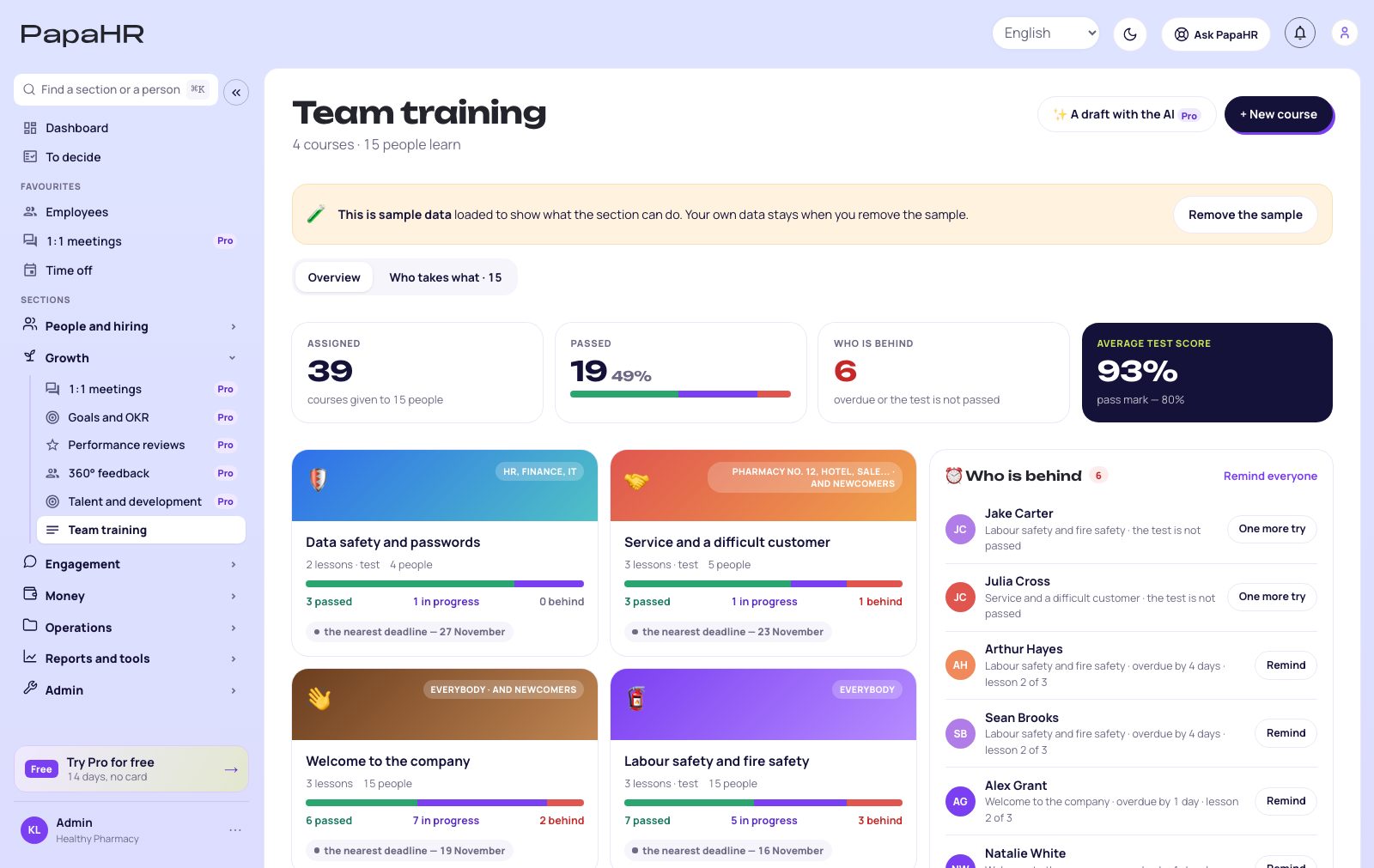
It is in the menu under “Growth”. The overview shows how many courses are given, who passed and who is behind.
Start with “New course” or take one of the templates: labour safety, welcome to the company, customer service, data security. On Pro, “A draft with the AI” builds a course from your own policy or tech card.
Step 2
Add lessons, video and the test
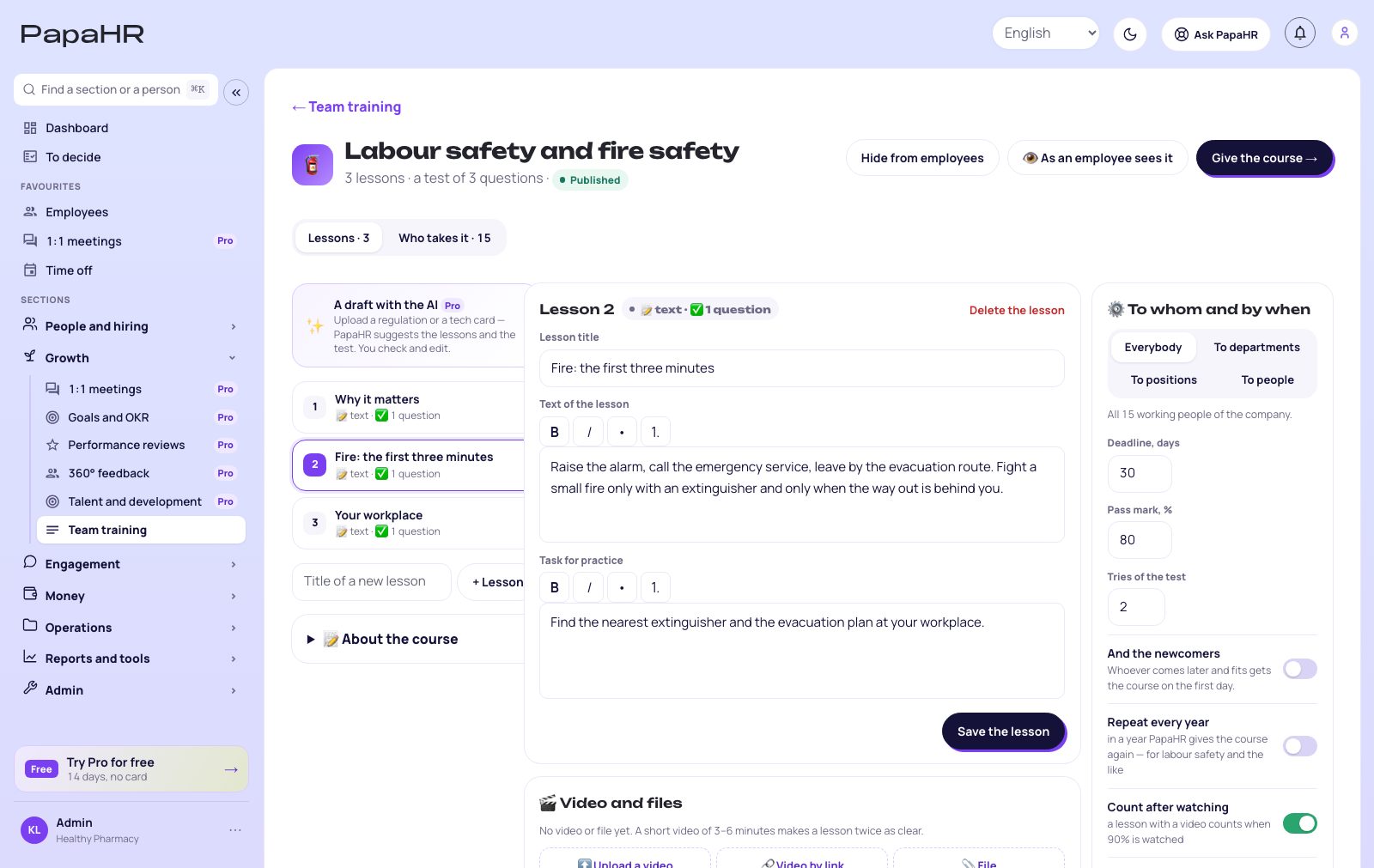
Lessons are on the left, the open lesson in the middle. A lesson is text, a task for practice and files.
Video: “Upload a video” (up to 200 MB a file and 1 GB for the company on Free, 1 GB a file and 10 GB on Pro) or “Video by link” — YouTube, Vimeo, Loom, Google Drive. Links do not use the storage.
Add test questions to a lesson: answers, the right one and an explanation the person sees after answering.
Step 3
Set the rules on the right
“Deadline, days”, “Pass mark, %” and “Tries of the test”.
“And the newcomers” — whoever joins the department or position later gets the course on their first day.
“Repeat every year” — a year after passing, PapaHR gives the course again. Good for labour safety and other compulsory training.
“Count after watching” — a lesson with a video counts only when 90% of it was actually played (uploaded, YouTube and Vimeo videos).
💡 Tip. Press “As an employee sees it” to go through the course as a learner before you give it.
Step 4
Give the course
Under “To whom and by when” pick everybody, departments, positions or people and press “Give the course”.
Each person gets a personal link by Telegram or another messenger, otherwise by email. The link opens the course without a password. Employees who sign in to PapaHR also see it in “My courses”.
⚠️ Important. The link is personal: the progress and the test result are counted to the person it was made for. Do not post it in a group chat.
Step 5
See who finished
PapaHR reminds people 3 days before the deadline and on the day. “Who is behind” on the overview lists overdue courses and failed tests; “Remind everyone” sends a reminder to all of them at once.
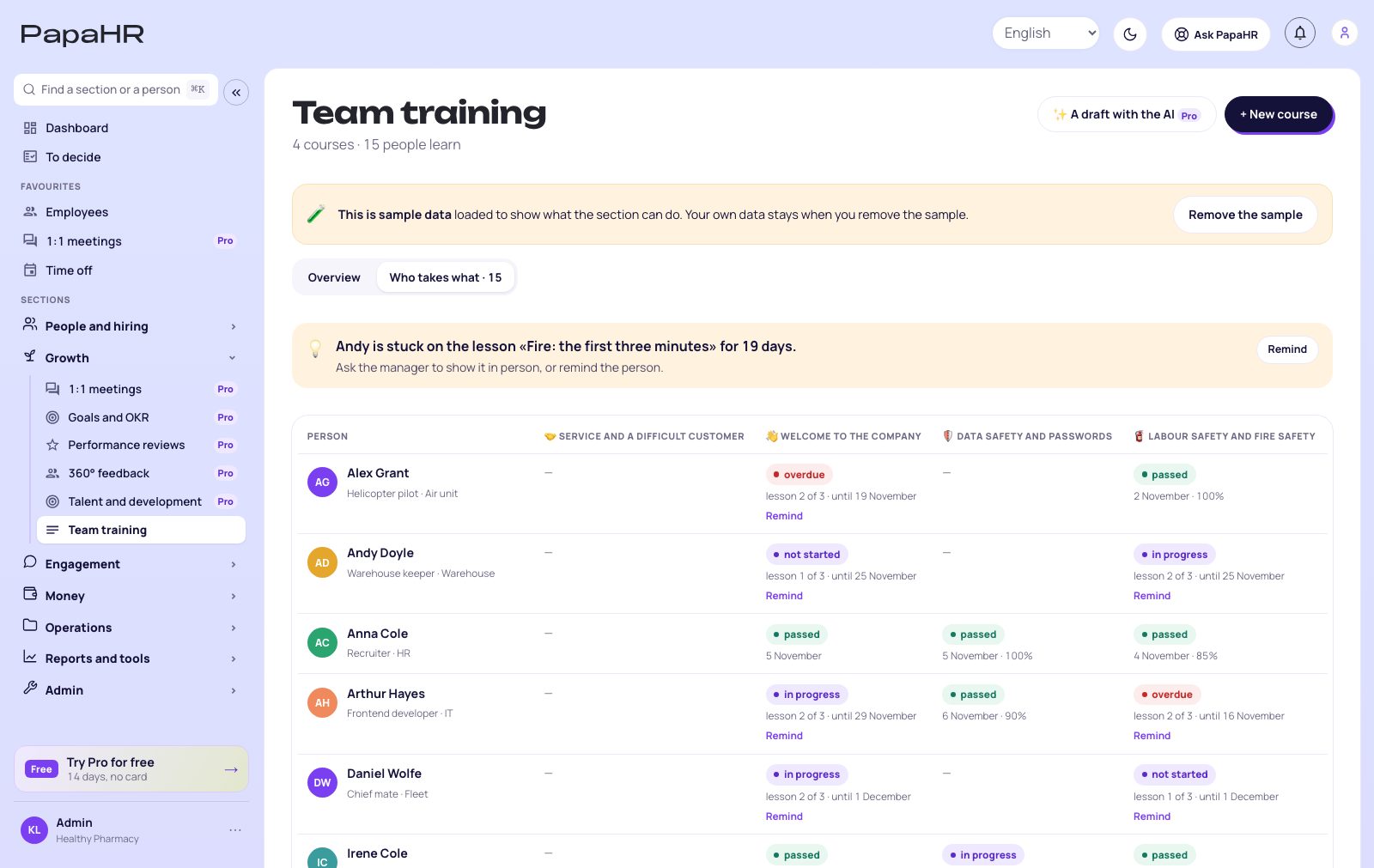
“Who takes what” is a table of people and courses: who is stuck and on which lesson. A manager sees only their own team.
Step 6
Certificates
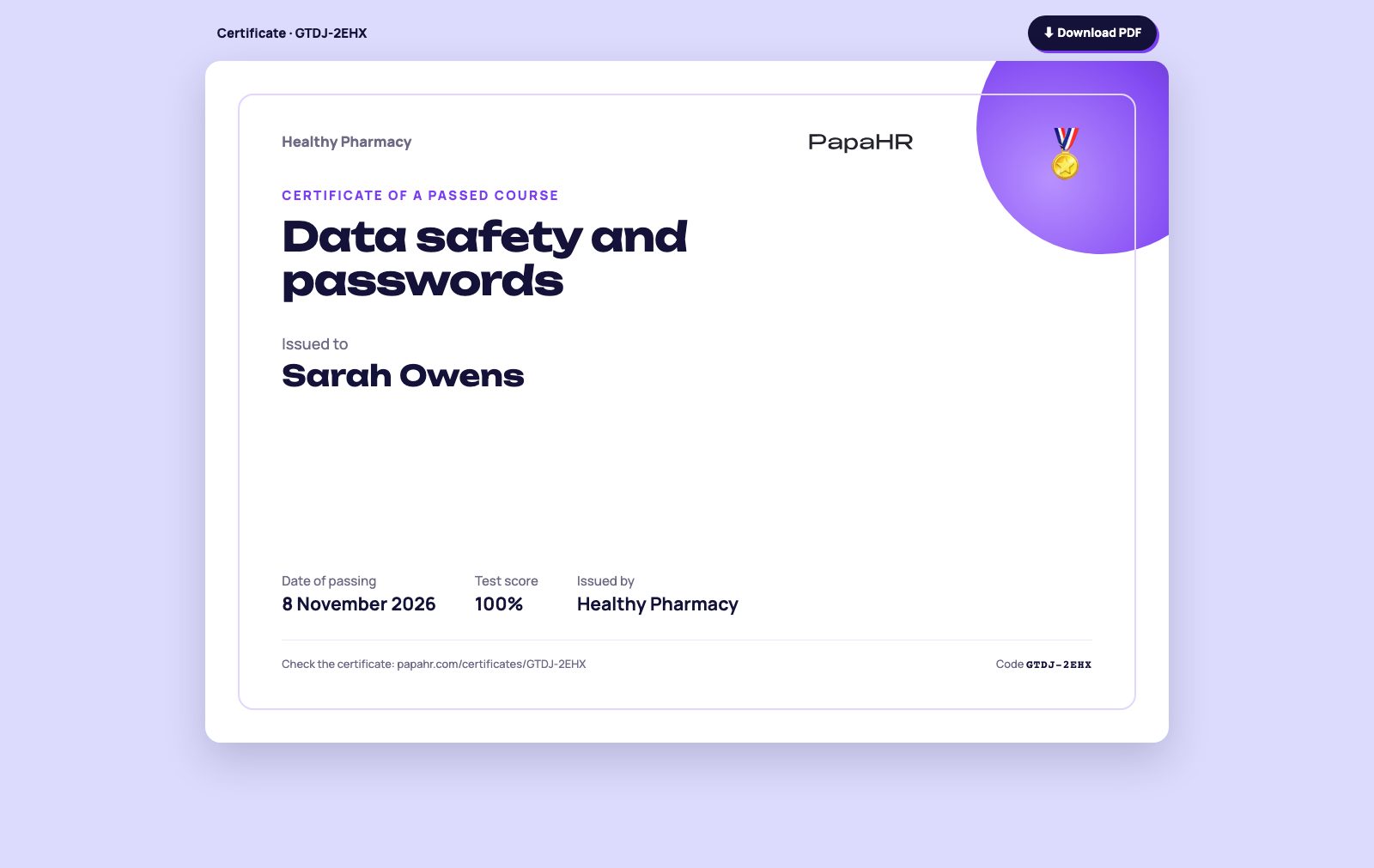
When a person passes the course, PapaHR issues a certificate with a code. It is in the person's card under “Training” and opens as a page to print or “Download PDF”.
Anyone can check the certificate by its code.
Common questions
Is team training free?
Yes, for companies of up to 25 employees: unlimited courses, tests, reminders and certificates, with no time limit. On Pro — no limit on employees, 10 GB for video and a course drafted by the AI from your document.
Is an account required for employees?
It is optional. The personal link opens the course without a password. Employees who sign in to PapaHR see their courses in “My courses”.
The video does not count as watched
With “Count after watching” on, a lesson counts only after 90% of the video was played. Skipping to the end does not count. For a Google Drive or Loom link PapaHR cannot see the playing, so such a lesson counts by the “Done — next lesson” button.
A person failed the test and has no tries left
Press “One more try” in their row under “Who is behind” — PapaHR gives the attempts back, and the person opens the same link.
The storage for video is full
Delete the videos you no longer need or put long videos on YouTube or Vimeo as unlisted and add them by link — links do not use the storage. On Pro the storage is 10 GB.
Didn't find the answer?
Write to us — we'll answer and add it to the guide.